Think of three kitchen remodels open in a QuickBooks Desktop file. It’s an illustration, not anyone’s books. Each job has no sub-jobs under it, has its status and description filled in, an active estimate, and progress invoices already billed against that estimate. Between them, those fields are how the office knows what’s left to bill.
Now move the file to QuickBooks Online Plus. Intuit’s US conversion article says jobs with no sub-jobs under them move as projects, so the three remodels arrive as projects. Their Job Status and Job Description don’t come across. The active estimates arrive marked Closed. And Intuit lists progress invoices (invoices based on estimates) and their extra fields among the things that don’t move. None of that is a reason to stay put. It’s a list of what to save before you click import.
Intuit discontinued QuickBooks Desktop 2023 after May 31, 2026, ending live support, Desktop Payroll, Desktop Payments, online bank feeds and security updates for those versions. If you’re moving to QuickBooks Online and want your jobs to land as projects, the plan is Plus: $140 a month at list price, with 5 billable users. Projects are only in Plus and Advanced. Advanced is $340 a month with 25 billable users, and the reason to pay for it is needing more than 5 billable users; crew who only enter time or view reports don’t count toward Plus’s 5. Once you create the Online company, you have 90 calendar days to import your Desktop file, and the import replaces whatever is already in that company.
Prices are monthly list prices in US dollars, before tax, from Intuit’s QuickBooks Online pricing page; the conversion details are from Intuit’s US help articles, linked as they come up. All were checked October 17, 2026. None of it comes from converting a company file. This post sticks to the plan, the monthly cost and what changes in the move, so payroll, inventory, Desktop pricing and the click-by-click steps are left to Intuit.
What ended for Desktop 2023, and the route that stays on Desktop
Intuit’s Desktop 2023 discontinuation page names Pro Plus 2023, Premier Plus 2023, Enterprise 23.0 and Mac Plus 2023, along with the 2023 Accountant editions, as discontinued after May 31, 2026. For those versions it lists the loss of live technical support, Desktop Payroll (including automatic payroll tax calculations and payroll forms), Desktop Payments, online bank feeds, so you can’t download bank transactions, and critical security updates.
Moving to Online isn’t the only route back to those services. Intuit’s page says existing QuickBooks Desktop Plus and Desktop Enterprise subscribers receive version 2024 at no extra cost as part of the annual plan. If your subscription is active, check that before you decide.
If Desktop Payments was how customers paid your invoices, how ACH fees work on large invoices covers the payment side of the move, which this post leaves out.
Plus, unless you need more than 5 billable users
| Plan | List / month | Billable users | Projects |
|---|---|---|---|
| Simple Start | $38 | 1 | No |
| Essentials | $85 | 3 | No |
| Plus | $140 | 5 | Yes |
| Advanced | $340 | 25 | Yes |
Monthly list prices, before tax. Promotional pricing isn’t shown.
Projects is the Online feature that tracks income and costs for a specific job, and Intuit’s projects help article puts it in Plus and Advanced only. That makes Plus the lowest-priced plan for a contractor who tracks jobs. Essentials is $55 a month less, but it doesn’t have Projects.
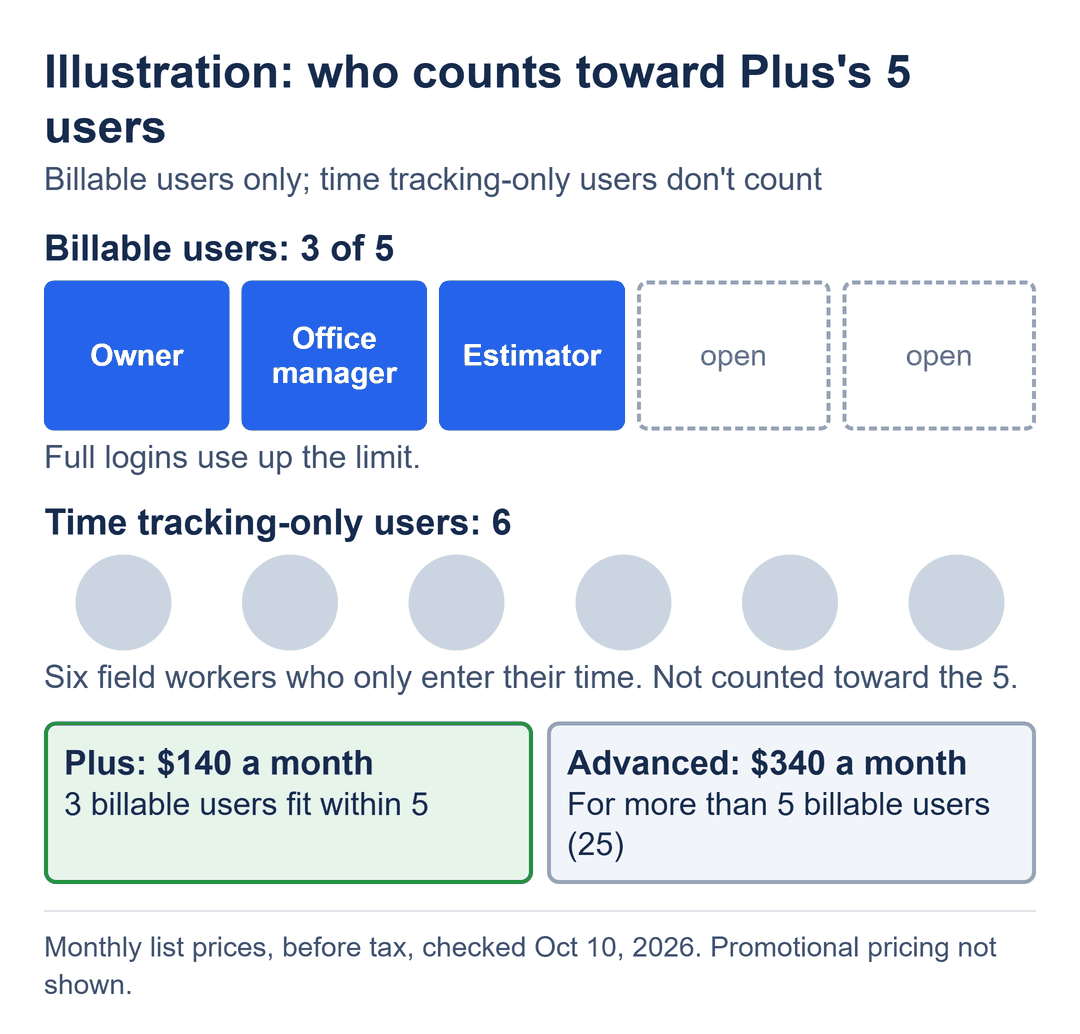
The user count is billable users, not everyone who logs in. Intuit’s usage limits page says that on Plus and Advanced, time tracking-only and reports-only users are unlimited and don’t count toward the limit. Take the remodeler from the top and give it an owner, an office manager and an estimator who need full logins, plus six field workers who only enter their time. That’s 3 billable users, and the six can be invited as time tracking-only users, so the company fits on Plus at $140. If you need more than 5 billable users, the next step is Advanced at $340, which is $200 a month more. Advanced’s plan card also lists extra project and construction finance features, which this post doesn’t evaluate.
Intuit’s pricing page currently shows 50% off for 3 months as an option alongside a 30-day free trial. Check the offer terms at checkout; the table above shows list prices only.
What your job list, estimates and POs look like after the import
The file doesn’t arrive in Online exactly as it looks in Desktop. These are the items a job-tracking contractor is most likely to notice, and the three remodels from the top run straight through the first four rows.
| In Desktop | In Online | What to do |
|---|---|---|
| Jobs | Jobs with no sub-jobs move as projects; all other jobs move as sub-customers. | After the import, check which became projects and which became sub-customers. |
| Job Status and Job Description | Don’t move. Job Types aren’t available in Online. | Save your job list with status and description first. |
| Estimates | Active estimates arrive marked Closed; inactive ones arrive marked Rejected. | List your open estimates and review them afterward. |
| Progress invoices | Intuit lists progress invoices (invoices based on estimates) and their extra fields among the things that don’t move. | For each open job, save what was estimated and what’s been billed so far, then re-check the job after the import. |
| Open purchase orders | Don’t show items received. Item receipts convert to bills. | Note which POs are partly received, then link each PO to its bill in Online. |
| Price levels | Not available in Online. | Save the list so you still have the rates. |
| Memorized reports | Don’t move. Memorized transactions do, as recurring transactions. | Save the reports you rely on; review the recurring transactions afterward. |
| QuickBooks Time timesheet data (if you use QuickBooks Time with Desktop) | Doesn’t move. | Save the time reports you rely on first. |
| Bank connections | Don’t move. | Set up each bank and card connection again in Online. |
| Users | Existing users don’t get access automatically. | Invite each person from Online, within your plan’s billable user count. On Plus or Advanced, crew who only enter time can be time tracking-only users, which don’t count toward it. |
Two more changes: reimbursable expenses and unbilled time become billable expenses, and custom templates don’t move. This is a selection, not the whole list; Intuit’s full breakdown is in Learn how features and data transfer from QuickBooks Desktop to QuickBooks Online.
If your crew clocks in through QuickBooks Time today and you plan to keep it after the move, its per-user cost on top of your bookkeeping plan is the add-on bill to price next.
90 calendar days, and an import that overwrites
You have 90 calendar days from the day you create your QuickBooks Online company to import your Desktop data, or 180 if your accountant signed you up. Both figures are in Intuit’s article on the time limit for importing Desktop data.
The import replaces what’s already in the Online company, and you can’t undo it. If the company has data, Intuit shows a prompt to replace it. So don’t start entering invoices, bills or estimates in Online before the import; anything you keyed in would be replaced.
If the window has already passed, Intuit gives two options: import your data manually from Excel, or cancel the QuickBooks Online account, create a new one and move your data then.
What I’d save before clicking import
- Your job list with status and description, plus the job reports and memorized reports you actually use.
- Each open job’s estimate and billed-to-date, since the estimates will arrive marked Closed.
- Open purchase orders that are partly received, your price levels, the people to re-invite and the bank accounts to reconnect.
- One housekeeping step from Intuit: update Desktop to the latest release and confirm the Total Targets count is below 4,000,000 (press F2 and look under Product Information).
Then create the Online company on Plus, or Advanced if you need more than 5 billable users, and import before anyone enters new work. Intuit’s steps for the move itself are in Move your QuickBooks Desktop company file to QuickBooks Online.
The conversion moves the records. Knowing which jobs were half-billed on the day you left Desktop is still on you, and the reports you saved are what you’ll check those three remodels, or your own open jobs, against once they’re in Online.